Installing dot-totp into Dotkernel Admin
Summary
This tutorial walks through installing the dot-totp package, adding the required files, wiring routes and configuration, and activating 2FA on an admin account.
Details
If you haven't already, install Dotkernel Admin.
The installation steps listed below should work similarly in any middleware-based application.
The first step is to include the package in your project by running this command:
composer require dotkernel/dot-totpWe will follow the Dotkernel file structure and create the files in the list below. If you follow the links from the main totp integration example, you can download the files and add them to your codebase.
- src/Admin/src/Form/RecoveryForm.php
- src/Admin/src/Form/TotpForm.php
- src/Admin/src/Handler/Account/GetDisableTotpFormHandler.php
- src/Admin/src/Handler/Account/GetEnableTotpFormHandler.php
- src/Admin/src/Handler/Account/GetRecoveryFormHandler.php
- src/Admin/src/Handler/Account/GetTotpHandler.php
- src/Admin/src/Handler/Account/PostDisableTotpHandler.php
- src/Admin/src/Handler/Account/PostEnableTotpHandler.php
- src/Admin/src/Handler/Account/PostValidateRecoveryHandler.php
- src/Admin/src/Handler/Account/PostValidateTotpHandler.php
- src/Admin/src/InputFilter/RecoveryInputFilter.php
- src/Admin/src/InputFilter/TotpInputFilter.php
- src/Admin/templates/admin/list-recovery-codes.html.twig
- src/Admin/templates/admin/recovery-form.html.twig
- src/Admin/templates/admin/validate-totp-form.html.twig
- src/App/src/Middleware/CancelUrlMiddleware.php
- src/App/src/Middleware/TotpMiddleware.php
You can use the trait at src/Core/src/App/src/Entity/TotpTrait.php in any entity where you need 2FA.
Make sure to migrate the new columns
totpSecret,totp_enabledandrecovery_codesin your entity.
There are still some code snippets in the _misc folder:
- the enable/disable 2FA button should be used in the
view-account.html.twigfile or in a new page. - the routes updates must be added in the
src/Admin/src/RoutesDelegator.phpfile. - the pipeline updates must be added in the
config/pipeline.phpfile after$app->pipe(AuthMiddleware::class);. - the ConfigProvider updates must be added in the
src/Admin/src/ConfigProvider.phpfile. - append these routes to your
authorization-guards.global.phpfile. - Add the constant below in
src/Core/src/App/src/Message.phpto return an error message when the recovery code is invalid.
public const VALIDATOR_INVALID_CODE = 'Invalid recovery code.'Dot-totp in Action
Once you have dot-totp implemented, you can activate the feature in your admin accounts.
If you navigate to your profile from the top-right image in Dotkernel Admin, you should see this box.

Simply click on 'Enable TOTP' to begin the activation process.
We blurred out the QR code and recovery codes for this tutorial. You will receive dynamically generated versions that will be fully visible to you.
You will need to have an Authenticator app installed on your mobile device.
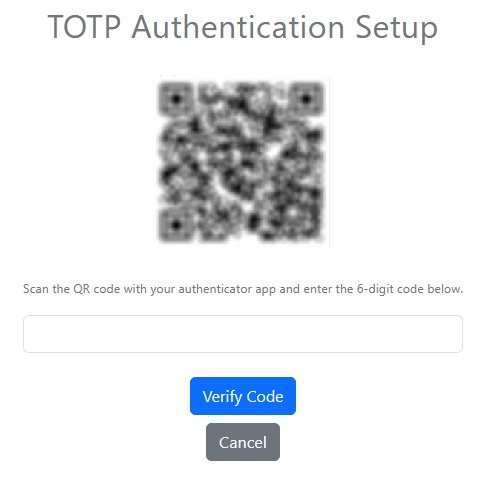
Follow the instructions on the screen:
- Scan the QR code with your mobile device.
- Enter the 6-digit code it generates on your mobile device.
The code refreshes every 30 seconds.
The TOPT activation flow will list several recovery codes you can use if your mobile device isn't available.
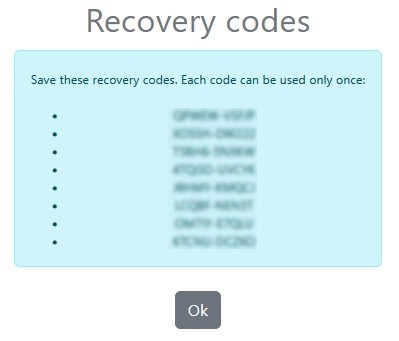
Each recovery code is usable only once.
Save the recovery codes in a secure location.
If the code is valid, you will be logged in, and TOTP will be activated for your account.
Whenever you need to log into the account, you will start by entering your username and password, like before. Since TOTP is activated, you will need to also submit the code from your Authenticator app. Alternatively, you can submit a recovery code.
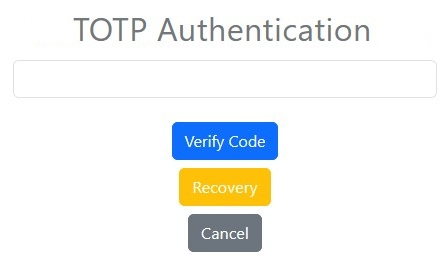
That's it! You are now logged in securely.
FAQ
Q: How do I add dot-totp to my project?
A: Run composer require dotkernel/dot-totp, then add the files listed in this tutorial, following the Dotkernel file structure.
Q: What do I need to migrate after adding the TotpTrait?
A: Migrate the new columns totpSecret, totp_enabled and recovery_codes in the entity that uses the trait.
Q: How does a user activate 2FA on their account?
A: They click 'Enable TOTP' from their profile, scan the QR code with an Authenticator app, and enter the 6-digit code it generates.
Q: What happens if a user loses access to their Authenticator app?
A: They can log in using one of the recovery codes generated during activation; each recovery code is usable only once.